



How to Connect to the VPN using Cisco
Overview
UC Davis is replacing Ivanti VPN with Cisco Secure Client. Follow the steps below to connect to the FOA VPN using Cisco Secure Client.
Most users should select FOA-Users when prompted. If you need a different connection, see VPN Connection Options. The connection steps are the same for all options. Simply select the VPN option you need when prompted.
You can start using Cisco Secure Client as soon as it’s installed on your computer. If you’re connected to Ivanti VPN, disconnect it before connecting with Cisco Secure Client.
Sections
Connect to the VPN
- In your task tray (Windows) or Menu bar (Mac), find the Cisco Secure Client icon.
Windows PC: Click the Cisco icon

Apple Mac: Click the Cisco icon and then Cisco Secure Client from the pop out

- Select the FOA-Users option from the drop down menu. Then click Connect.
Other VPN options may be visible in the drop down. You may select a different VPN option here if appropriate. See the section for VPN Connection Options for more details.
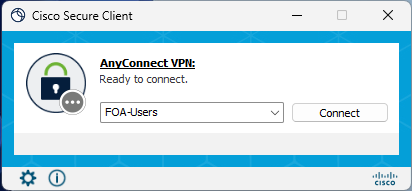
Your default browser will appear and prompt you to login with your UC Davis email address if you do not have a current authenticated session via ADFS.

After you enter your UC Davis email address, you will be prompted to enter your password and accept the DUO push if needed.

- Once you have successfully authenticated, you will get a message on your browser: "You have successfully authenticated. You may now close this browser tab."
- Don't forget to sign out of the Cisco VPN client before shutting down your computer or when not in use.
VPN Connection Options
When prompted in Cisco Secure Client, select the VPN option that matches your access needs. Most FOA Staff should select FOA-Users.
| VPN Option | Connection Type | Who should use it |
| FOA-Users | Split tunnel | FOA staff who need general VPN access. |
| FOA-Developers | Split tunnel | Users with approved developer access. To request access, email [email protected]. |
| Campus-Users-Split | Split tunnel | Campus users who need general VPN access. Some FOA or department-specific resources may be unavailable. |
| Campus-Users-Full | Full tunnel | Campus users who need all network traffic routed through the VPN. Some FOA or department-specific resources may be unavailable. |
Split Tunnel vs. Full Tunnel
- Full tunnel sends all your internet activity through the secure VPN connection. Choose this option when using public Wi-Fi at places like airports, cafés, or hotels.
- Split tunnel sends only certain activity, such as accessing UC Davis resources, through the VPN. Other activity, such as browsing most public websites, uses your regular internet connection. Choose this option when working from home or using Eduroam on campus.